What it actually does
Written for people who already know what a terminal is. No feature here exists because it demos well.
SSH and serial, in one client
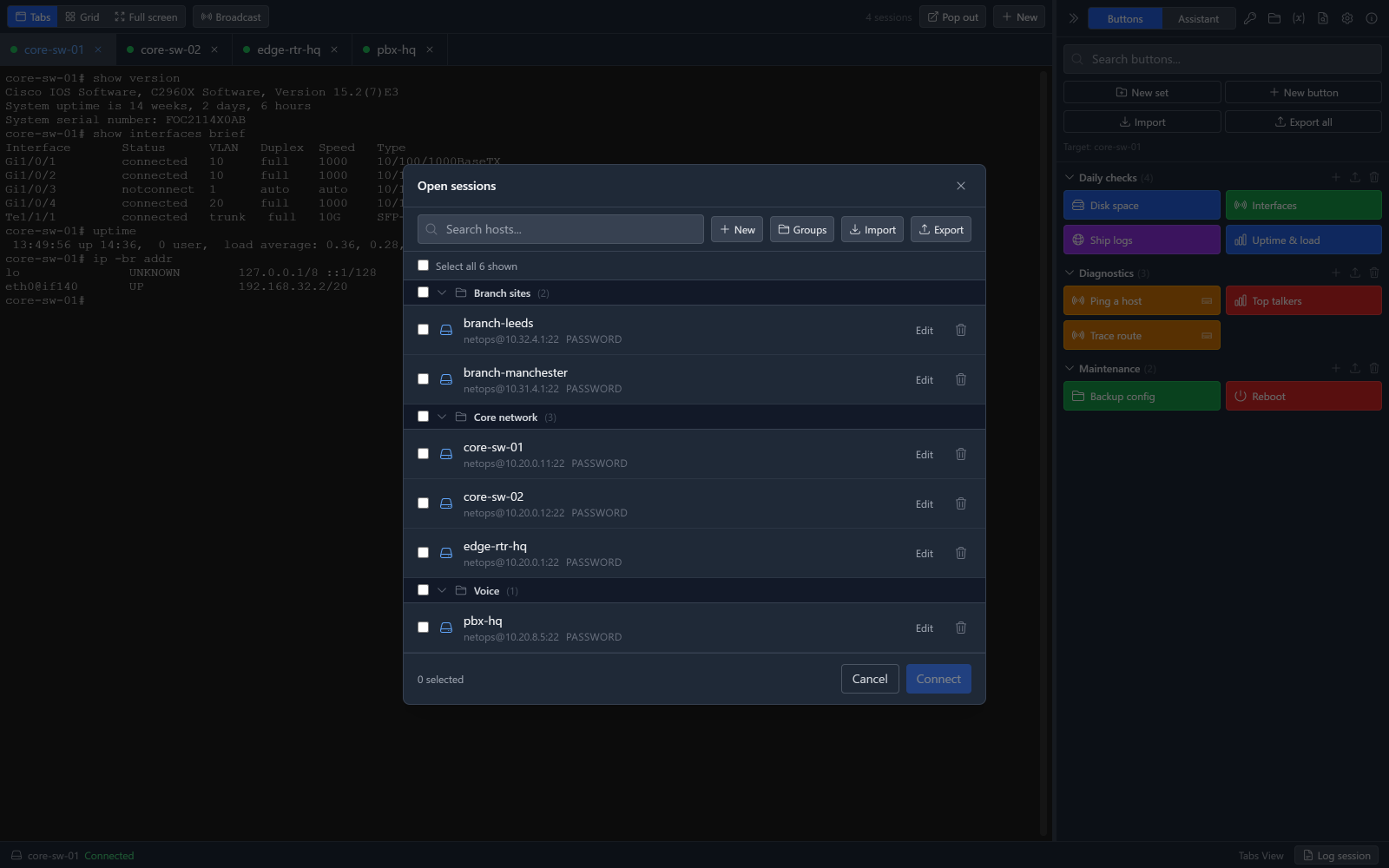
Most terminals treat one of these as the main event and the other as a bolt-on. Here they are the same thing: a connection, in a tab, with the same buttons attached.
Serial gets the settings you would expect to find on the front of a console server — baud rate, data bits, parity, stop bits, hardware or software flow control — because that 9600 8N1 default is right until the day it is not.
Connections live in folders. Select several and connect to all of them at once. Give a connection a startup script and it runs when the session opens: terminal length 0, the enable password prompt, whatever you type every single time.
Programmable buttons
The headline feature, and the reason the app exists. A button sends text to the session. That is the simple case, and most buttons never grow beyond it.
The rest of them do more:
- Pop a form and ask for a VLAN ID, an interface name or a change reference, then use the answer in the commands that follow.
- Wait for a specific prompt before continuing rather than firing blind into a slow device.
- Ask a yes/no question before doing anything irreversible — answer no and the script stops.
- Call another button, so a long procedure is assembled from pieces you already trust.
- Run an entire set of buttons in order.
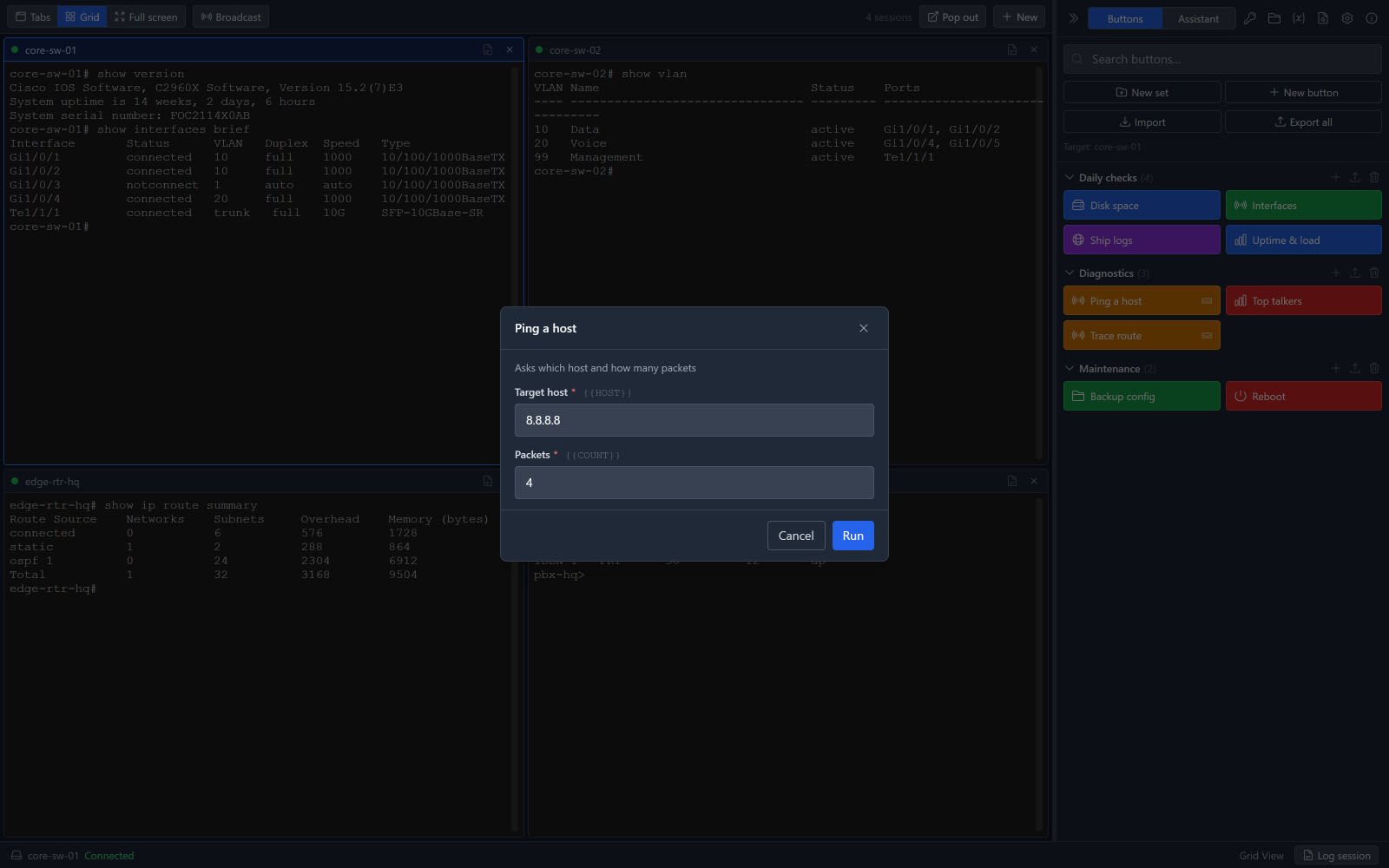
Buttons are grouped into sets. A set is what you export, and what you share on the exchange.
The button library
Every install ships with 2,714 buttons in 95 sets across 23 bundles, covering 20 vendors — Cisco IOS and IOS XE, Junos, EOS, AOS-CX, OS10, ICX, RouterOS, FortiGate, PAN-OS, pfSense, UniFi, BIG-IP, Proxmox, ESXi, Hyper-V, Linux, Docker, Subversion, Asterisk and Kamailio.
Before 1.3.0 a new install opened on an empty panel and an invitation to build your own. That is still what the app is for — but starting from nothing is a poor way to learn what the blocks do, and nobody should have to write "show interface status" themselves.
- 1,399 of them stop and ask for the value that changes rather than hard-coding it.
- 659 sit behind a confirmation, and 268 of those name the device or interface they are about to act on — after the form is filled in, so it reads back what you actually typed.
- No bundle holds more than 200 buttons. Bigger platforms split into sets that import independently.
These were written from documented syntax, not run against live hardware of every platform. The read-only ones are low risk; test the destructive ones in a lab before you trust them in production. Every button shows its full script before it runs.
The script builder
Buttons are built from coloured blocks, stacked in order. Nobody has to learn a config syntax to automate a five-command procedure they do twice a week.
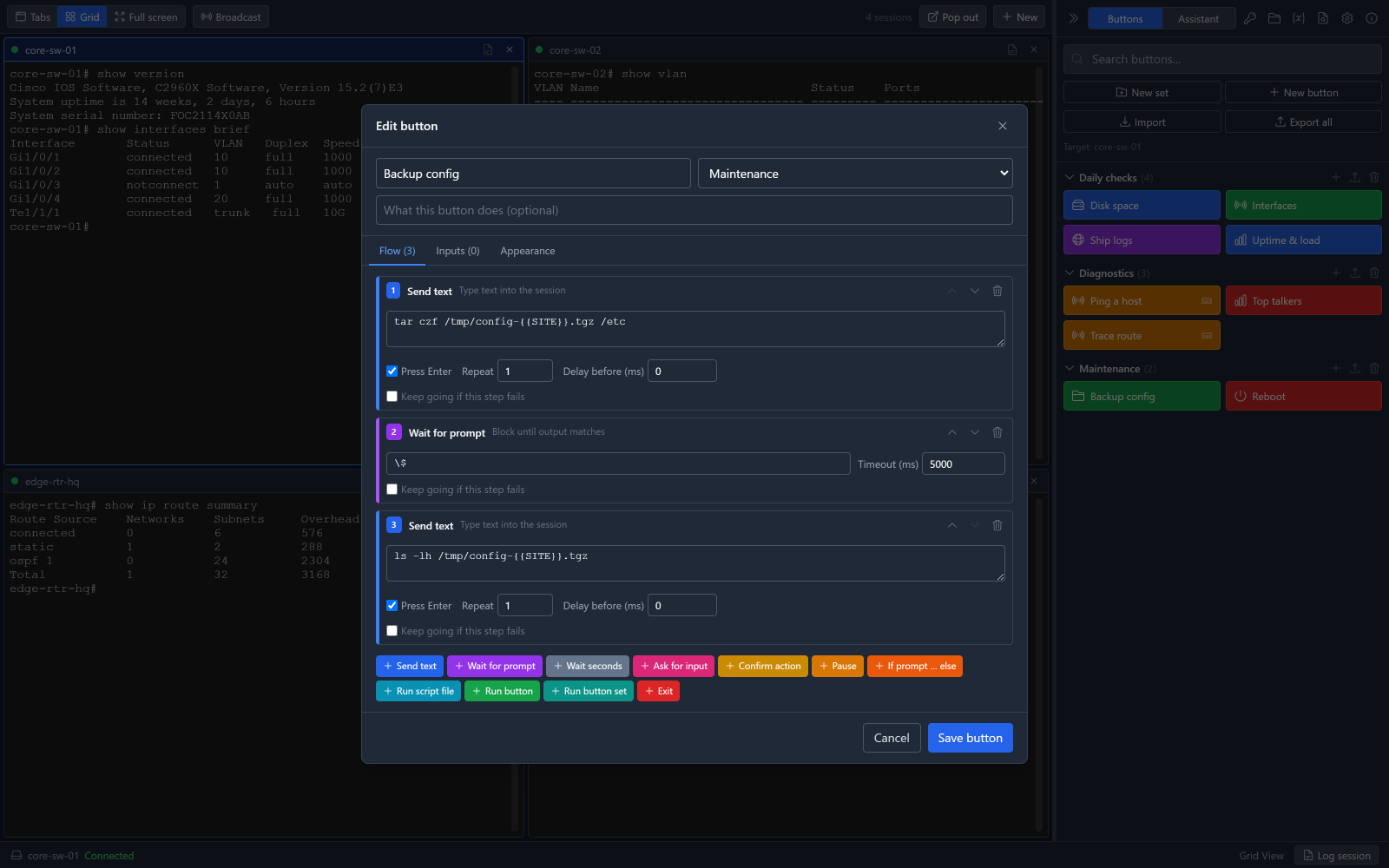
- send
- Types text into the session.
- expect
- Waits for matching output before continuing.
- delay
- Waits a fixed time.
- form
- Asks the operator for input; answers fill {{VAR}} placeholders in later steps.
- confirm
- Yes/no gate. Answering no stops the script.
- pause
- Stops until the operator resumes.
- if
- Branches on what the session returned.
- while
- Repeats its steps until a pattern appears. Always bounded.
- forEach
- Walks a list held in a variable, running its steps once per item.
- download
- Copies a file off the host over SFTP into the downloader's transfer folder.
- upload
- Sends a file from the downloader's transfer folder to the host over SFTP.
- logStart
- Begins writing the session output to a file on the downloader's machine.
- logStop
- Closes the session log the script opened.
- exit
- Stops the script.
- runScript
- Copies a script from your library to the host, runs it, then deletes it.
- callMacro
- Runs another button from this bundle.
- callSet
- Runs every button in another set from this bundle.
Answers from a form block fill {{PLACEHOLDER}} slots in
later steps, so one button covers the whole family of "same procedure, different port".
Global variables
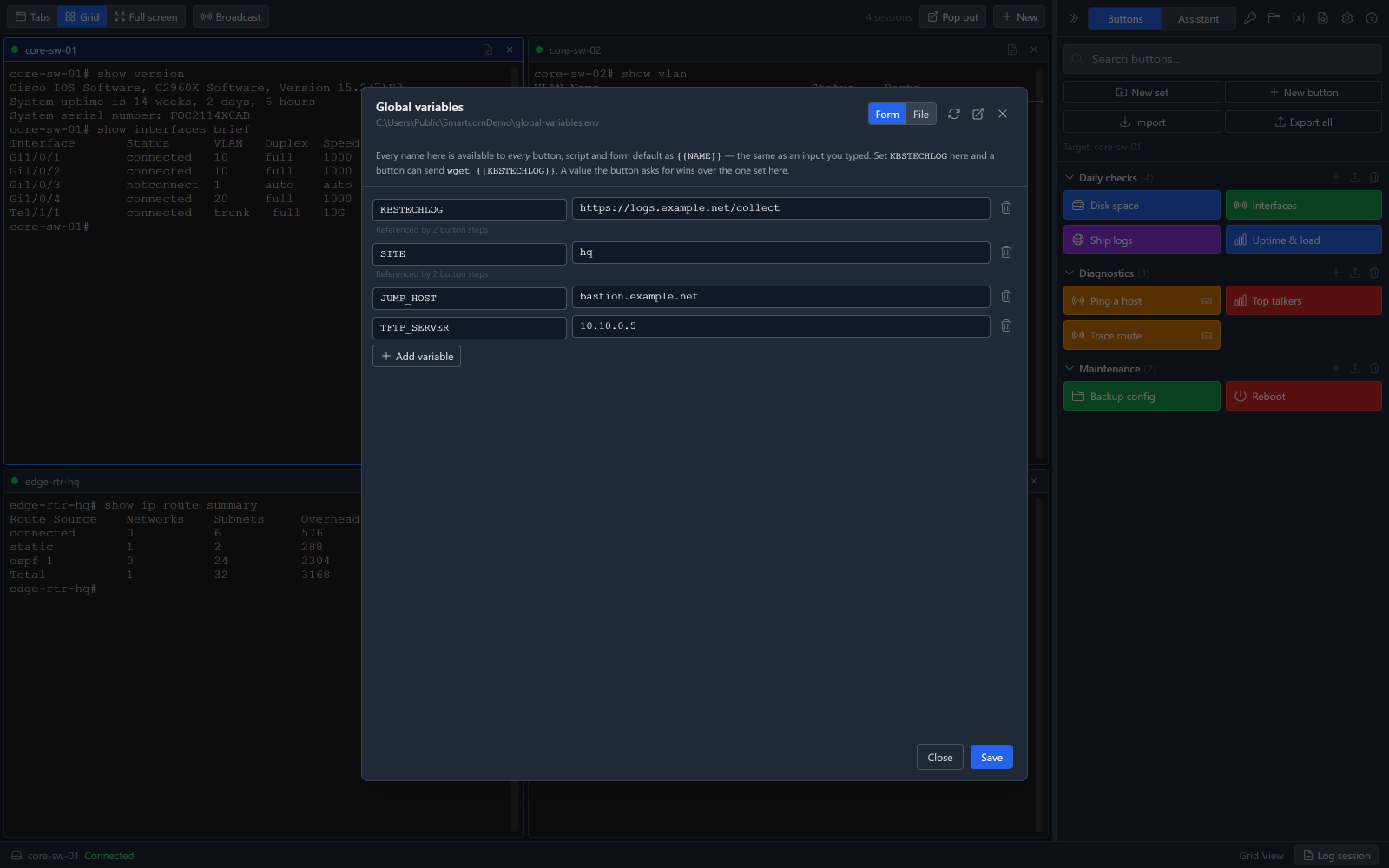
A value you set once that every button can use, with nothing declared per button. Set
KBSTECHLOG to your log collector's URL and any button anywhere can send
wget {{KBSTECHLOG}} — the same {{NAME}} syntax as the popup
forms, filled from your machine instead of from a dialog.
It is a plain text file, and it is yours: edit it in the app, edit it in your own editor, keep it in git, hand one to a colleague. It is re-read on every button press, so a change takes effect on the next press without a restart. A value a button asks you for wins over a global of the same name — globals are the background, not an override.
The reason it matters beyond convenience: a button that refers to
{{TFTP_HOST}} instead of an address can be shared. Your value never leaves
your machine, and whoever downloads the set supplies their own. See
global variables.
Keeping the panel readable
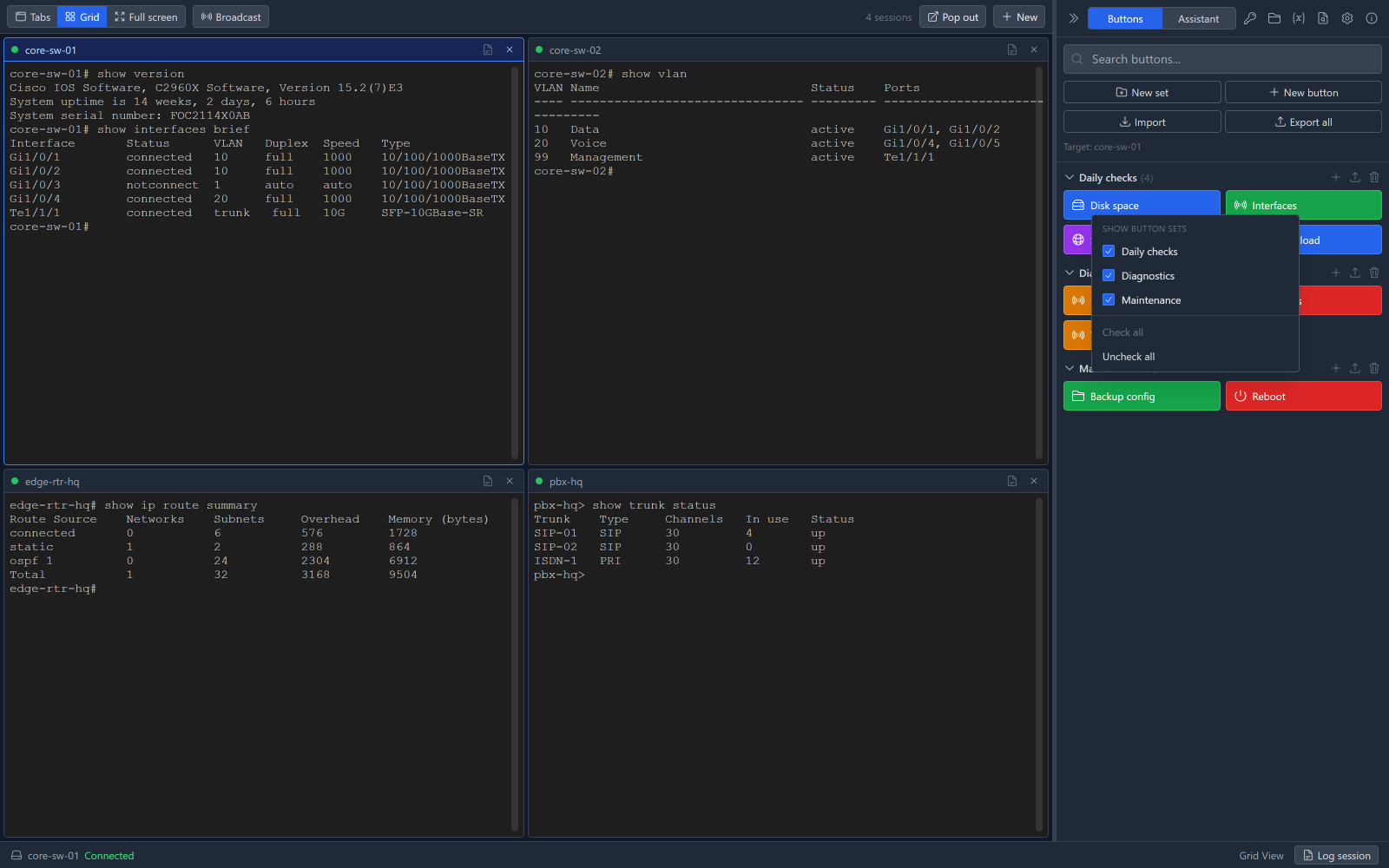
Right-click the buttons panel for a tick list of every set you have. Untick one and it disappears from the panel without being deleted; the choice is remembered per machine, and a footer tells you how many sets are hidden so the panel never lies about what you own.
This is what makes installing half a dozen sets from the exchange reasonable rather than unmanageable. See hiding button sets.
Sets that follow the connection
A connection can name the sets it uses, and the panel then shows only those while a session to that host is in front. Leave it empty — which is what every connection you already have looks like — and you get everything, exactly as before.
It is a filter rather than a lock: the footer says how many sets are out of sight, and one click shows them all for the current session. See button sets per connection.
Tag a host, get the matching sets
Connections carry tags and so do button sets, and a set appears on any connection sharing
one. Tag a switch cisco and everything tagged cisco is on it —
including sets you install next month, which a hand-picked list cannot
do. The two are additive: a set shows if it is named or shares a tag.
All 95 shipped sets arrive tagged with their vendor and platform, so this works the moment a host is tagged, with no set editing at all. Sets downloaded from the exchange bring their tags with them and start matching your hosts on import.
Tags are normalised as you type — lower-cased, with spaces turned into hyphens — so two people labelling things months apart still match. See tagging hosts and sets.
Favourites
Star a button and it joins a Favourites set pinned to the top, which ignores the per-connection filter — so the handful you use on everything follow you from a switch to a PBX. Star it again to remove it. Starring copies the button in rather than linking to it.
Copying a button
Copy any button into any set under a new name. The copy is a snapshot, not a link: edit either afterwards and the other is untouched. This is how you take a shipped vendor button and make it right for your kit. See favourites and copying.
Pickers you can search
"Run another button", "run a whole set" and the startup-script picker were plain dropdowns over every button on the machine. With a couple of thousand installed that stopped working, so they are filtering comboboxes now.
Sessions, grids and broadcast
Open as many sessions as you need. Arrange them as tabs, as a tmux-like grid, or put one fullscreen while you concentrate.
Broadcast types into every connected session at once — and it fires buttons across all of them too. Pushing the same NTP server to forty switches stops being forty jobs.
Detached windows
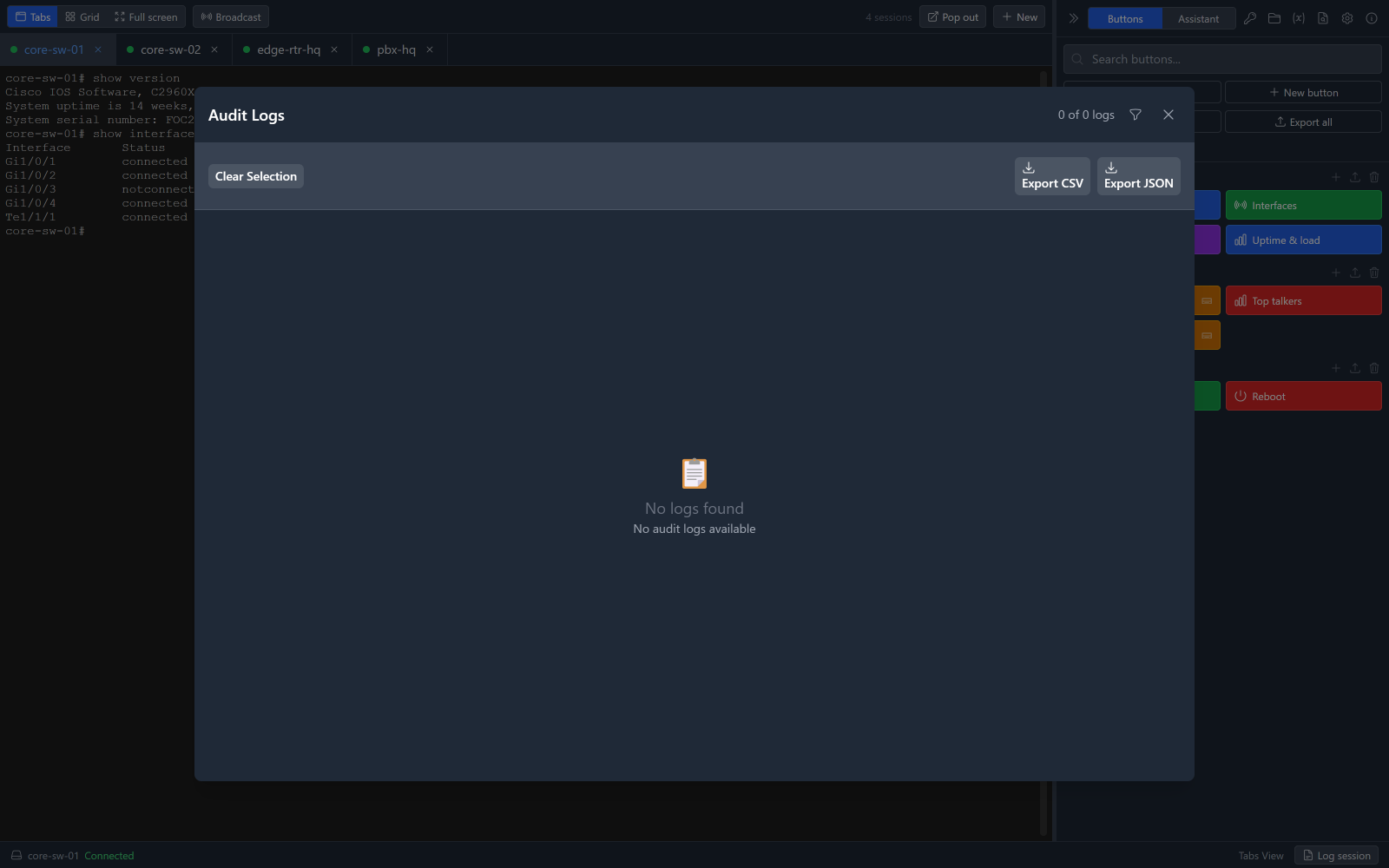
Terminals pop out into their own windows for a second or third monitor. The button panel stays where it is and acts on whichever pane has focus, so you are not hunting for the right set of buttons on the wrong screen.
Logging and audit
Session logging in the PuTTY style: everything to a file, either raw or with the ANSI escape codes stripped so the log opens cleanly in a text editor and pastes into a ticket.
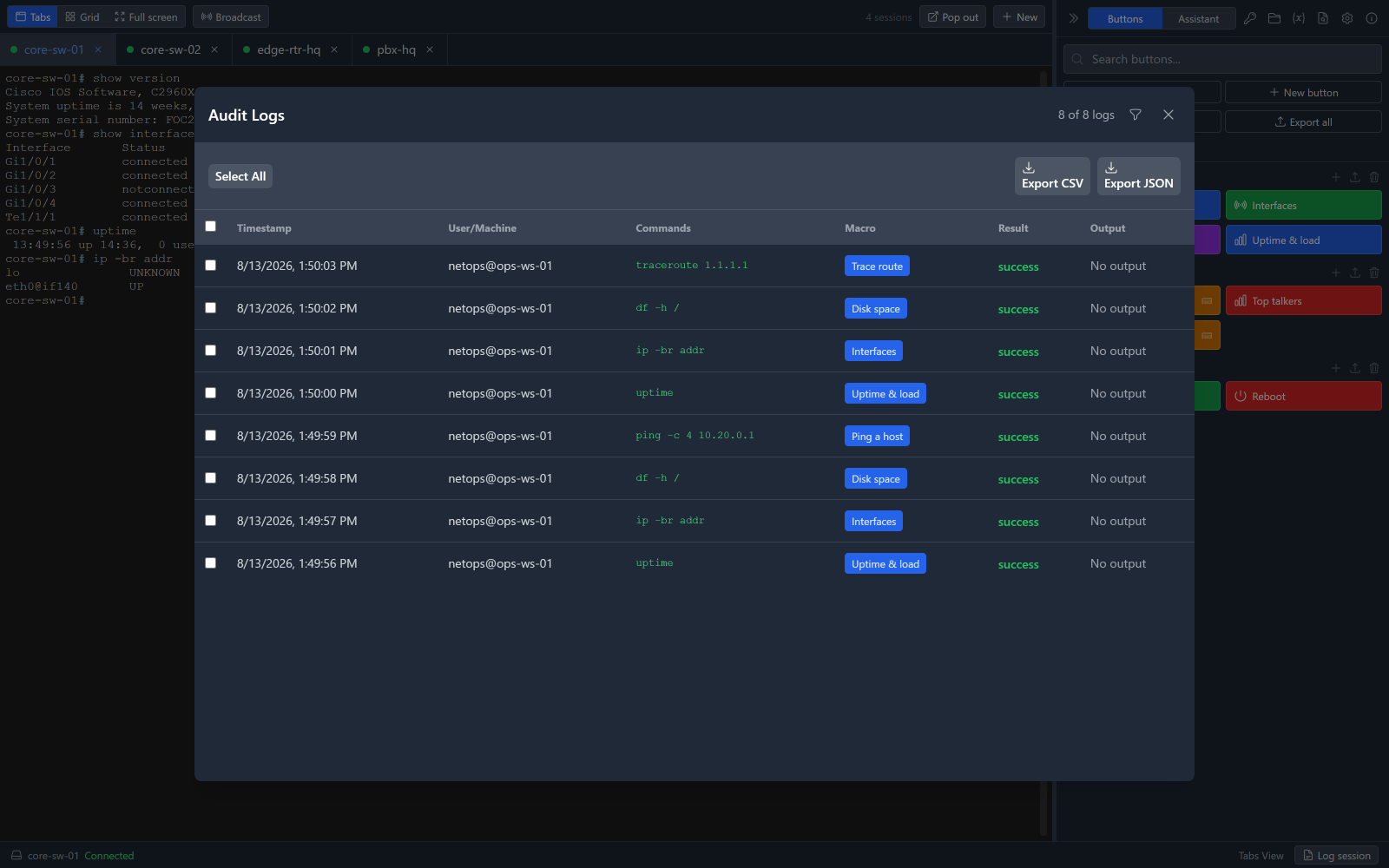
Separately, an audit log records which button ran against which connection and when. It is a local record for you, not telemetry going anywhere.
Keys and secrets
Generate a key pair in the app and deploy the public half to a host the
ssh-copy-id way, without leaving the client.
New keys are ED25519 by default. RSA is still there for equipment that
has not caught up, labelled as the compatibility choice; its key-size box only appears
when you pick it. Importing an existing key works for both traditional PEM and
-----BEGIN OPENSSH PRIVATE KEY----- files — the format almost every ED25519
key is in, and the one that used to fail with an OpenSSL error while the dialog promised
it was supported.
Passphrase-protected keys work throughout, adding a key under a name already in use is refused rather than quietly duplicated, and existing RSA keys and connections carry on untouched. See SSH keys.
Passwords and passphrases go into the operating system's own vault — DPAPI on Windows, Keychain on macOS, libsecret on Linux. They are not in a config file, not in a database, and not in any export you share.
The AI assistant
Reads the session transcript and proposes commands. It is read-only by design: it cannot execute, and there is no setting that lets it. Every suggestion is something you look at and then run yourself, or do not. Its Insert button puts a multi-line suggestion in the terminal and stops there — you press Enter.
Backends: Claude, OpenAI, or Ollama on your own machine, chosen from dropdowns you can change mid-conversation. That last one matters in places where nothing may leave the building — the assistant still works, and the transcript never crosses the boundary.
Every answer carries a badge saying what context it was given, so "did it actually read the terminal?" is a question you can answer by looking rather than by guessing. Local models show an elapsed timer while they think.
Command help while you type
Type a command into a session and the terminal works out what you are actually
running — not the first word. sudo -u root tcpdump -i eth0 is a
tcpdump question. A chip above the terminal lights up when there is a
page for it, and opens it beside the session rather than over it.
Every example becomes a small builder. Where the documentation writes
rsync {{path/to/source}} {{path/to/destination}} you get two fields, the
command as it will actually be sent, and four buttons: copy it, insert it on the command
line and stop there, run it, or hand it to the assistant. Fields come pre-filled from
the example itself; one that only describes a value is flagged and holds
Run back until you have replaced it.
It picks the page that matches what you are connected to. Windows pages at a PowerShell
prompt, Linux for WSL, and Cisco IOS pages for a connection tagged
cisco — where show, write and
reload deliberately do not fall through to their Linux namesakes, which
mean something else entirely.
This is documentation, not a safety review. It describes
rm -rf as cheerfully as it describes ls, so anything that
looks destructive becomes Review & Run and shows you the command and the
box it is going to first. A command goes to the session named when you opened the page
and to no other: switch terminals with the panel open and it tells you, and offers to
retarget. It never quietly follows focus.
Ctrl+Shift+T searches all ~7,400 pages by name, by description, or by what you are trying to do — "restart service", "find large files". The set downloads once in the background and works offline afterwards; if it cannot download, it says so and nothing else changes. See command help while you type.
Command documentation comes from the tldr-pages project and is used under CC BY 4.0.
Coming from PuTTY, and going to SecureCRT
A conversion script turns saved PuTTY sessions into a file you can import, so the hundred-and-something hosts in your registry come across in one go rather than being retyped. See importing PuTTY sessions.
In the other direction there is Export connections for SecureCRT: a CSV for SecureCRT 9.2+ carrying session name, folder, host, port, protocol, username and emulation, with your folders preserved as SecureCRT folder paths. A README with the import steps is written beside it.
It exports connections. It is not a way to move your setup across — buttons, audit history, session logs, global variables and assistant settings have no SecureCRT equivalent and do not travel. No passwords, passphrases or keys are written, usernames are off by default, and serial connections are reported rather than exported because SecureCRT's text importer has nowhere to put baud rate or parity. See export connections for SecureCRT.